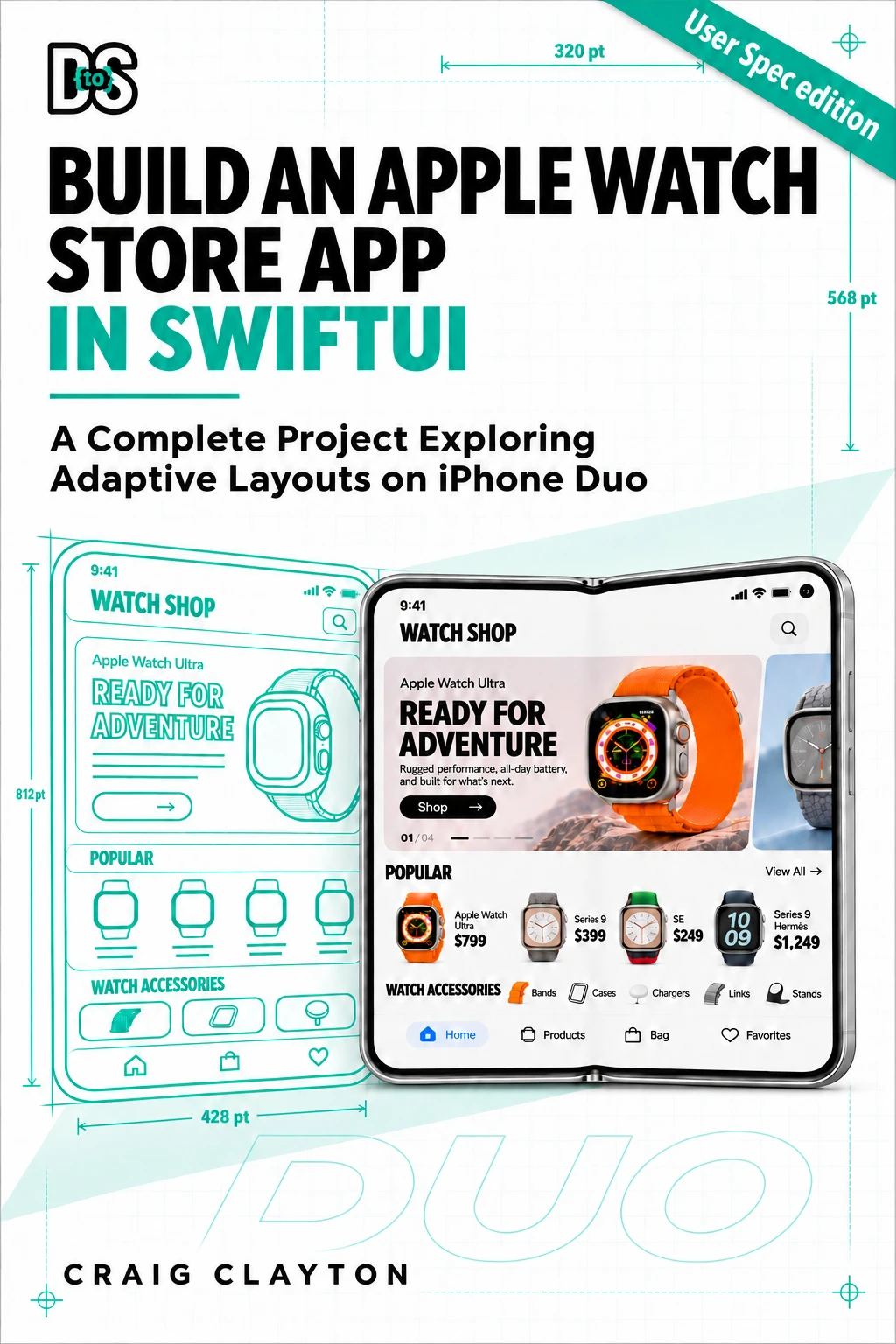
The complete book · all three parts

Build it.
Then make it fold.

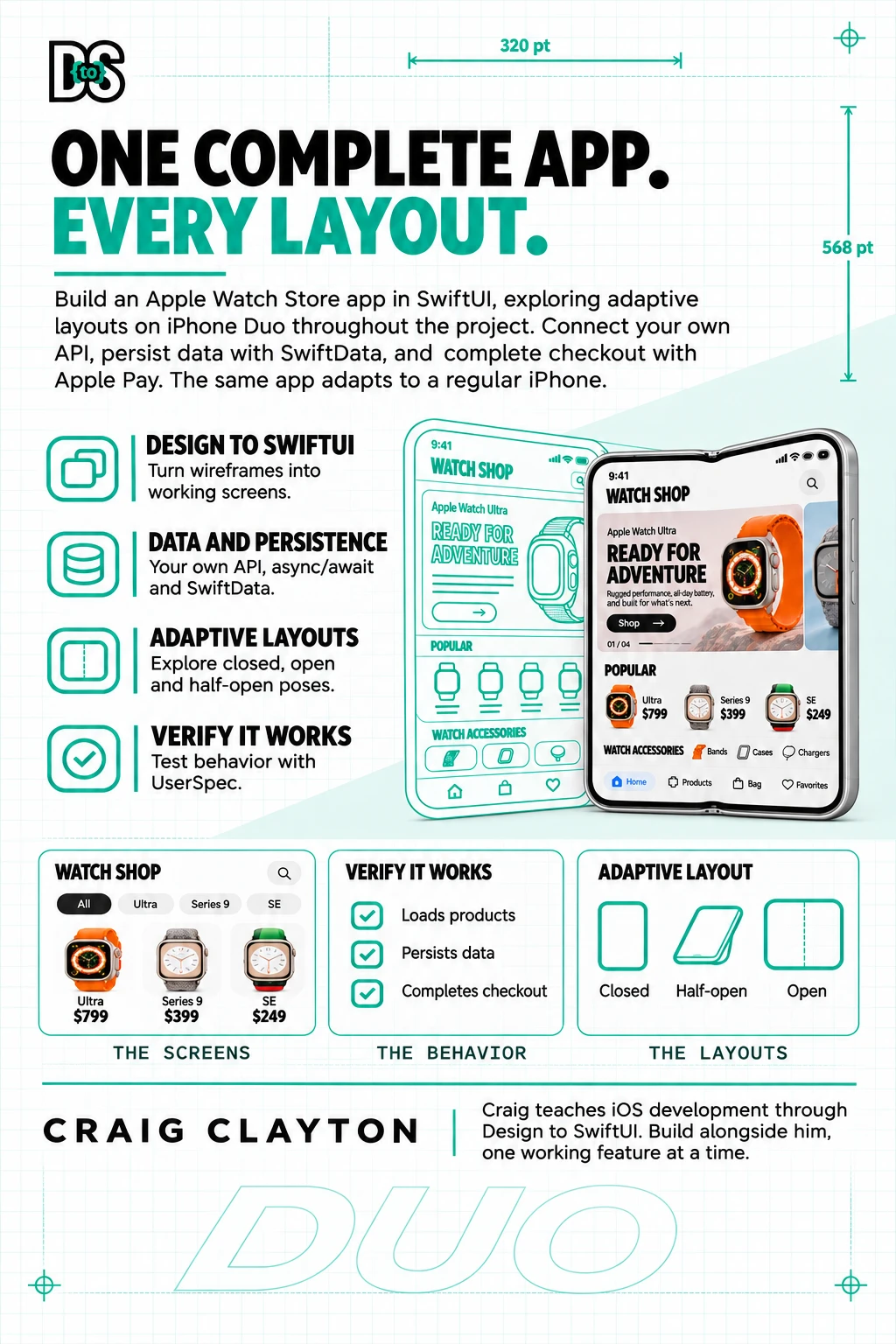
One complete watch store app, built one small step at a time. Every piece of code is explained. The book focuses on iPhone Duo, and the same app runs on every iPhone and iPad.

Build an Apple Watch Store App in SwiftUI, front cover
Build an Apple Watch Store App in SwiftUI, back cover
Apple Watch Store App in SwiftUI
Drag or swipe to turn the book

Did you know

It's not the app you built before.

A foldable changes the rules. Tap a card to check what you know.

what's inside

Three parts. Thirty-one chapters.

Tap a chapter to see what you build, the screen it makes, and some of its code.

Part 1: Design

Build every screen with dummy content. Ready now.

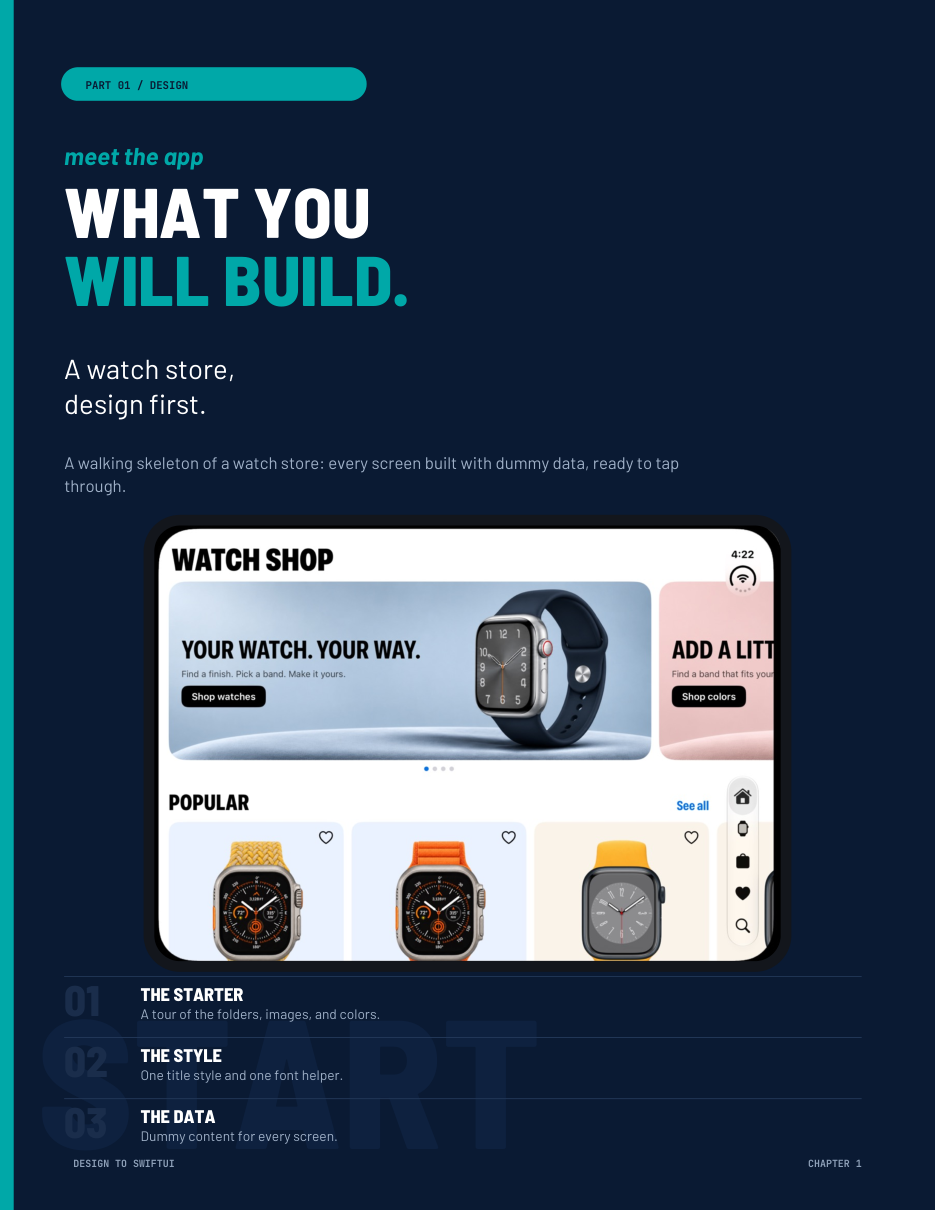
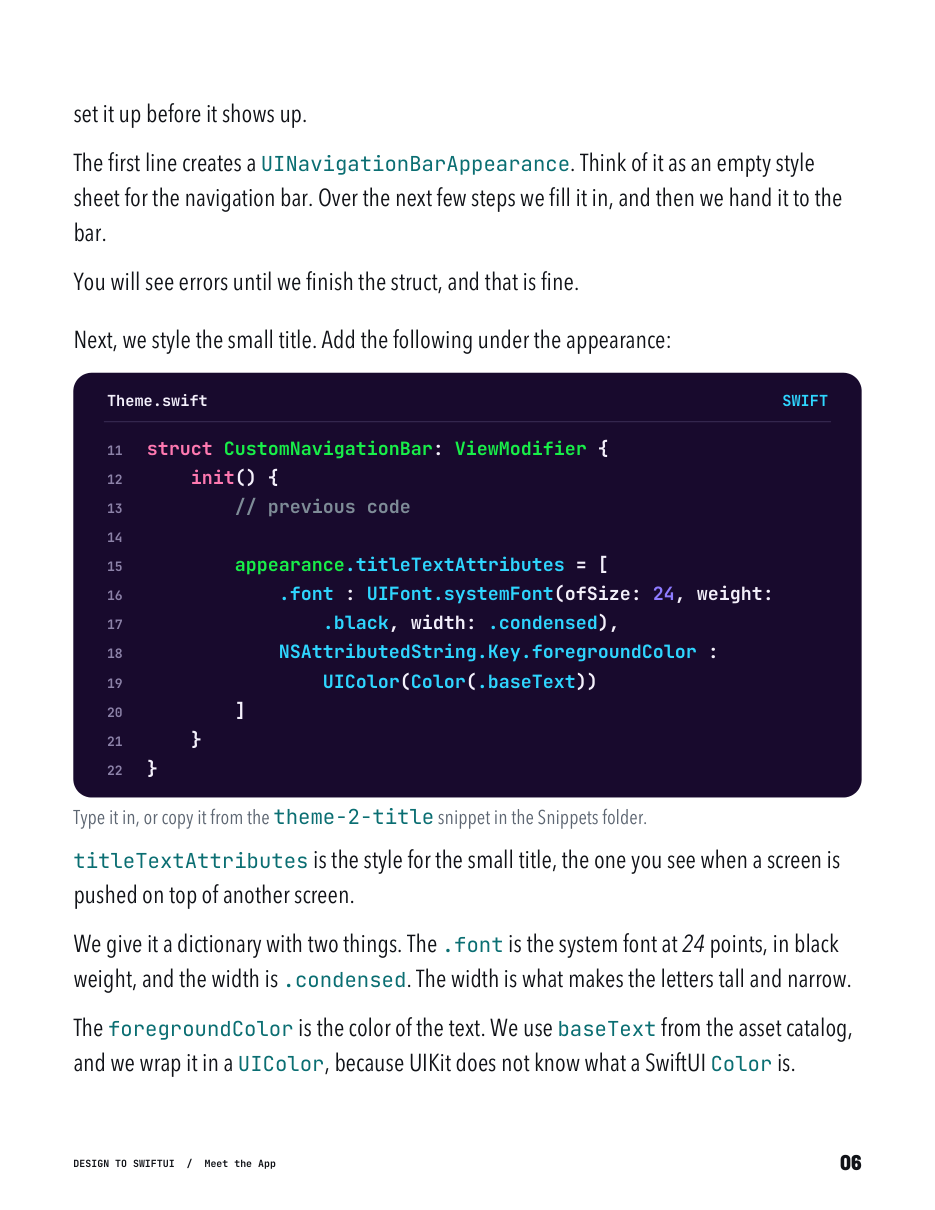
01Meet the App

A walkthrough, the project setup, the assets, fonts and colors, and the shared styles.

  • Tour the starter project and its folders
  • Style the navigation bar and bring in the fonts
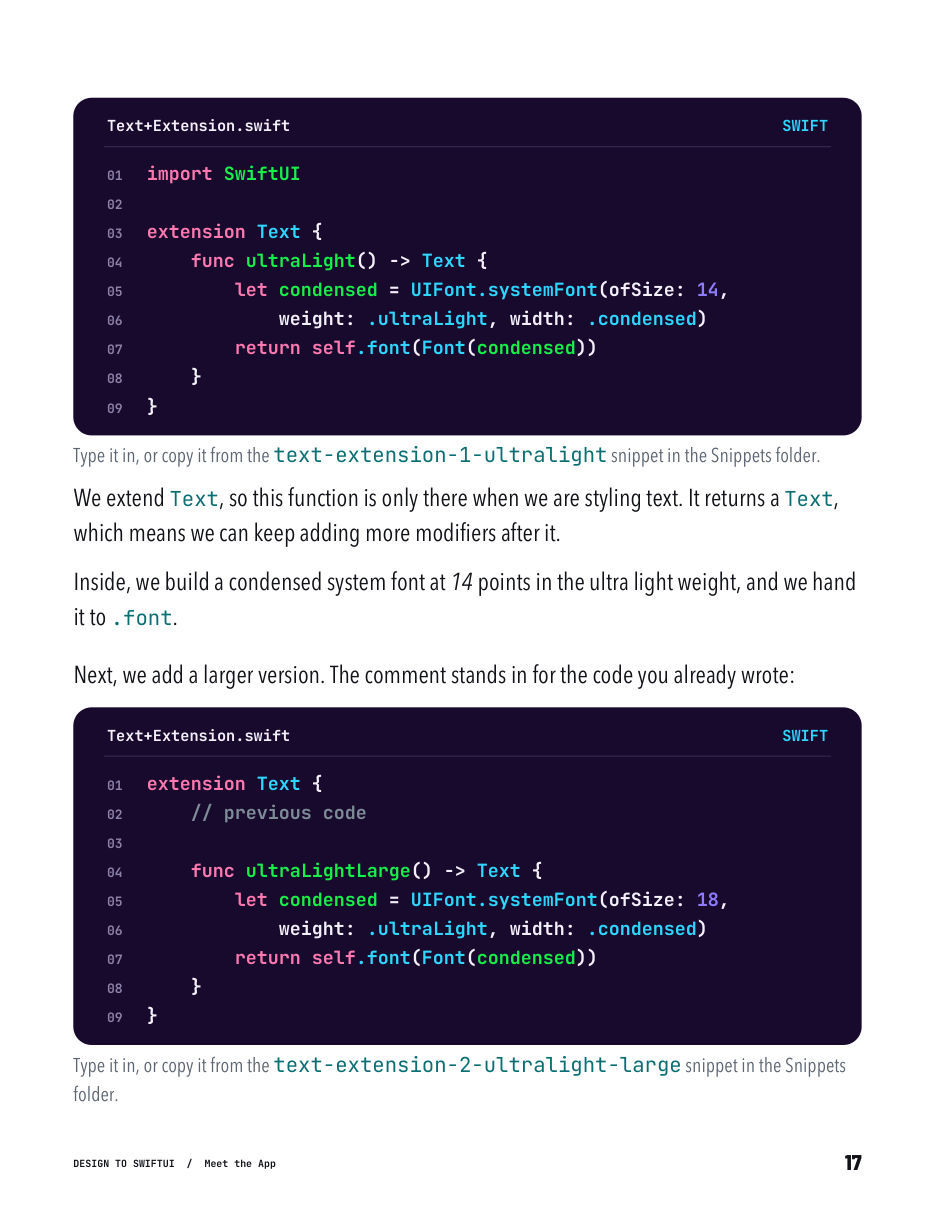
  • Add text styles you reuse on every screen
Meet the App screen
Text+Extension.swiftSWIFT
01extension Text {
02 func heavy(size: CGFloat = 60) -> Text {
03 let condensed = UIFont.systemFont(ofSize: size, weight: .heavy, width: .condensed)
04 return self.font(Font(condensed))
05 }
06}
02How the App Is Organized

The MV pattern: models, managers and the environment. No view models.

  • Models and managers hold the state
  • Views read it from the SwiftUI environment
  • Why this app has no view models
ShoppingCart.swiftSWIFT
01@Observable
02class ShoppingCart: Identifiable {
03 let id = UUID()
04 var quantity: Int = 0
05 private(set) var products = [CartProduct]()
06
07 var total: Decimal {
08 products.reduce(Decimal.zero) { $0 + $1.lineTotal }
09 }
10}
03The Home Screen, Part 1

Browse By Section: the folders, the header and the card view.

  • The header and the scrolling hero
  • A card view built from small pieces
  • Layouts that react to the fold pose
The Home Screen, Part 1 screen
CardView.swiftSWIFT
01struct CardView: View {
02 let product: FeaturedProduct
03 var height: CGFloat = 150
04 @Environment(\.pose) private var pose
05 @Binding var tabSelection: Int
06}
04The Home Screen, Part 2

The Popular section as a grid item, and the Category section as a list item.

  • A Popular row of grid items
  • A Category section of list rows
  • Dummy data from one file
The Home Screen, Part 2 screen
05The Tab View

Four tabs, the bag badge and navigation.

  • Home, Products, Bag and Favorites
  • A badge that shows what is in the bag
  • A rail instead of a bar when the Duo is closed
The Tab View screen
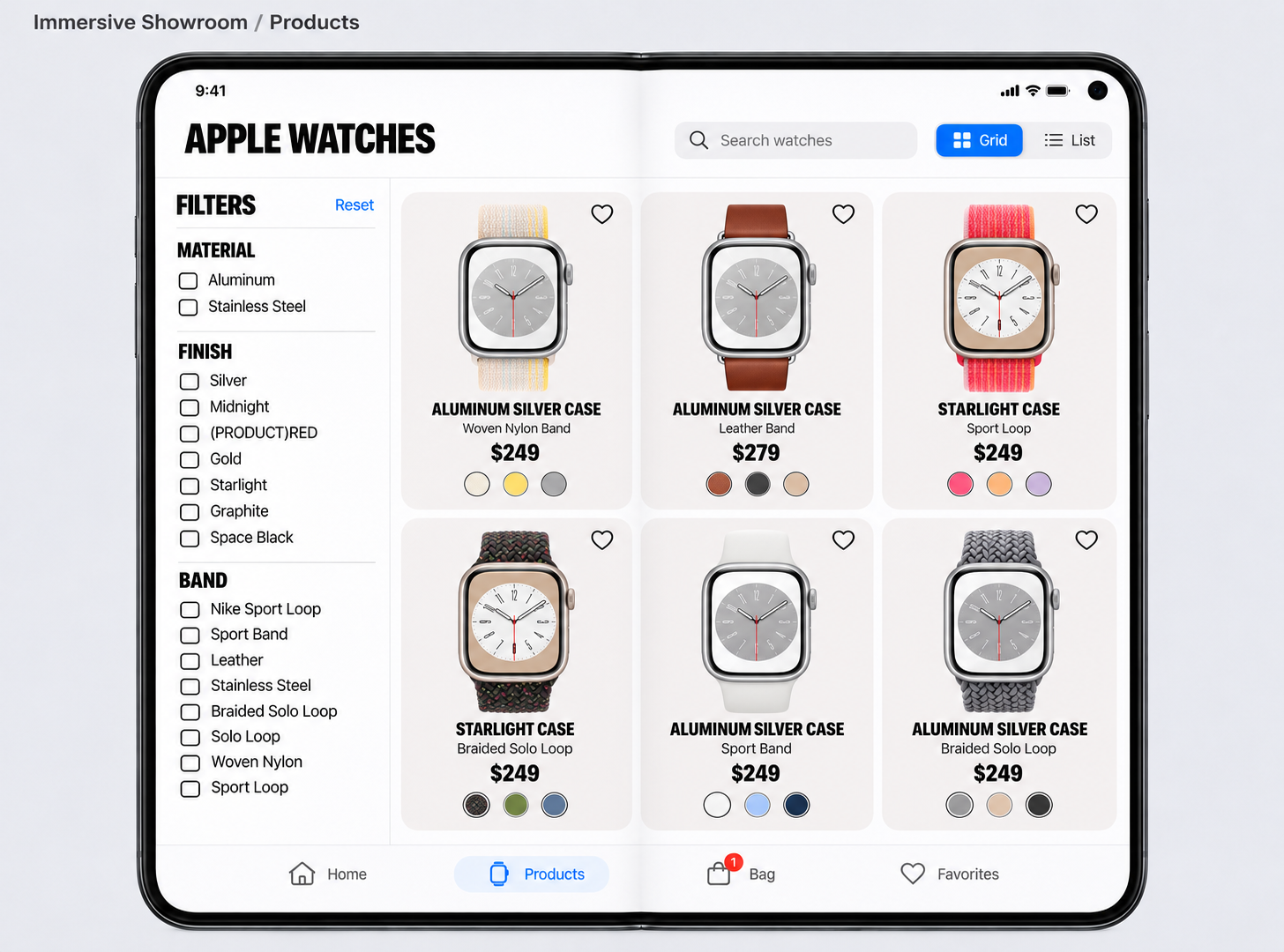
06The Products Screen

A list and a grid, with the layout toggle.

  • A grid of product cards
  • A list of wide product rows
  • A toggle that switches between them
The Products Screen screen
07The Filter View

The filter UI and each of its sections.

  • Material, finish and band sections
  • A sheet that opens from Products
  • A two-column layout on a wide screen
The Filter View screen
08The Cart

The cart item, the quantity stepper and the totals.

  • A row for each watch in the bag
  • A quantity stepper
  • Subtotal, tax and total
The Cart screen
09Favorites

The design breakdown and the wide product item.

  • A wide product item
  • Cards laid out for the pose
  • Saved items in one place
Favorites screen
10Product Detail

The description, case sizes, wrist sizes, connectivity, Apple Care and the reviews UI.

  • A photo gallery and the product name
  • Choices for case size, wrist size and connectivity
  • Apple Care and the reviews UI
Product Detail screen

Part 2: iPhone Duo

Adapt the app for the fold. Ready now.

11Meet the iPhone Duo

The three poses of the Duo, and the rule every screen follows.

  • The three poses of the iPhone Duo
  • The rule for every screen
  • How Part 1 looks on the Duo
Meet the iPhone Duo screen
12Detecting the Pose

One enum, one environment value and one modifier that tell every view which pose the Duo is in.

  • An enum for the three poses
  • An environment value
  • A modifier that reads the fold
Designing for the Fold screen
ContentView.swiftSWIFT
01enum Pose: Equatable {
02 case closed // folded, no vertical crease
03 case open // flat, an inactive seam
04 case partial // half open, an active fold
05}
13The App Shell

A small change to the tab view so any screen can change the selected tab.

  • The Tab API with a value for each tab
  • A selection we can change from any screen
  • The system tab bar on the Duo
The App Shell screen
14A Grid That Avoids the Fold

Two small layouts that keep every card on one side of the fold.

  • A grid that knows the pose
  • A row that splits around the fold
  • The Products grid in every pose
A Grid That Avoids the Fold screen
15Home

The hero card, the Popular row and the categories, fixed for every pose.

  • A hero card that splits at the fold
  • A Popular row sized to the screen
  • Categories in two columns
Home screen
16Products and the Filter

The filter becomes a sheet, a panel or a pane, depending on the pose.

  • A filter that is a sheet, a panel, or a pane
  • A grid that gives up columns for the panel
  • One filter view for all three
Products and the Filter screen
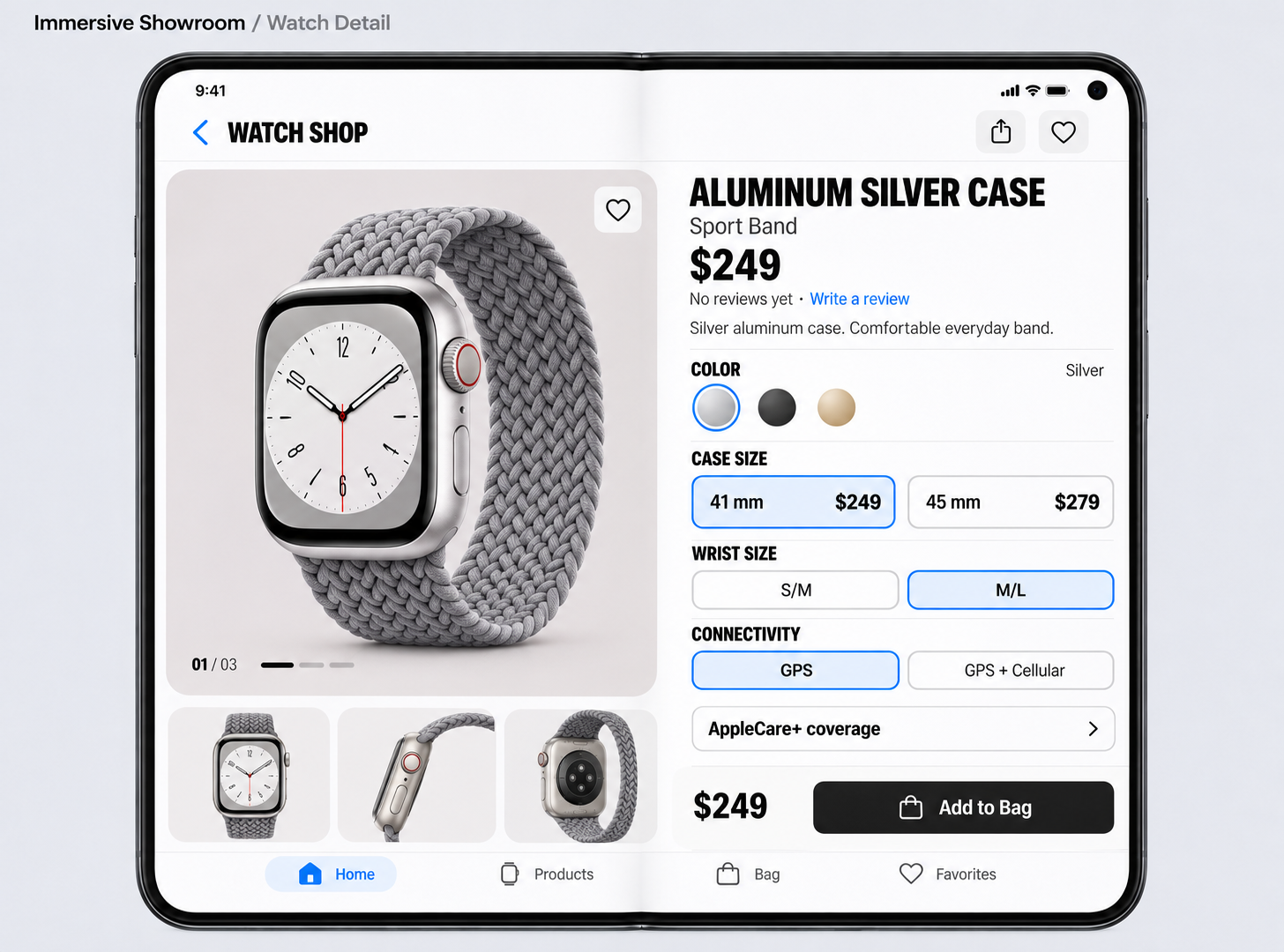
17Watch Detail

A detail screen that stacks when narrow and splits into two panes when wide.

  • Stack the screen when it is narrow
  • Two panes when it is wide
  • A gallery that stays put
Watch Detail screen
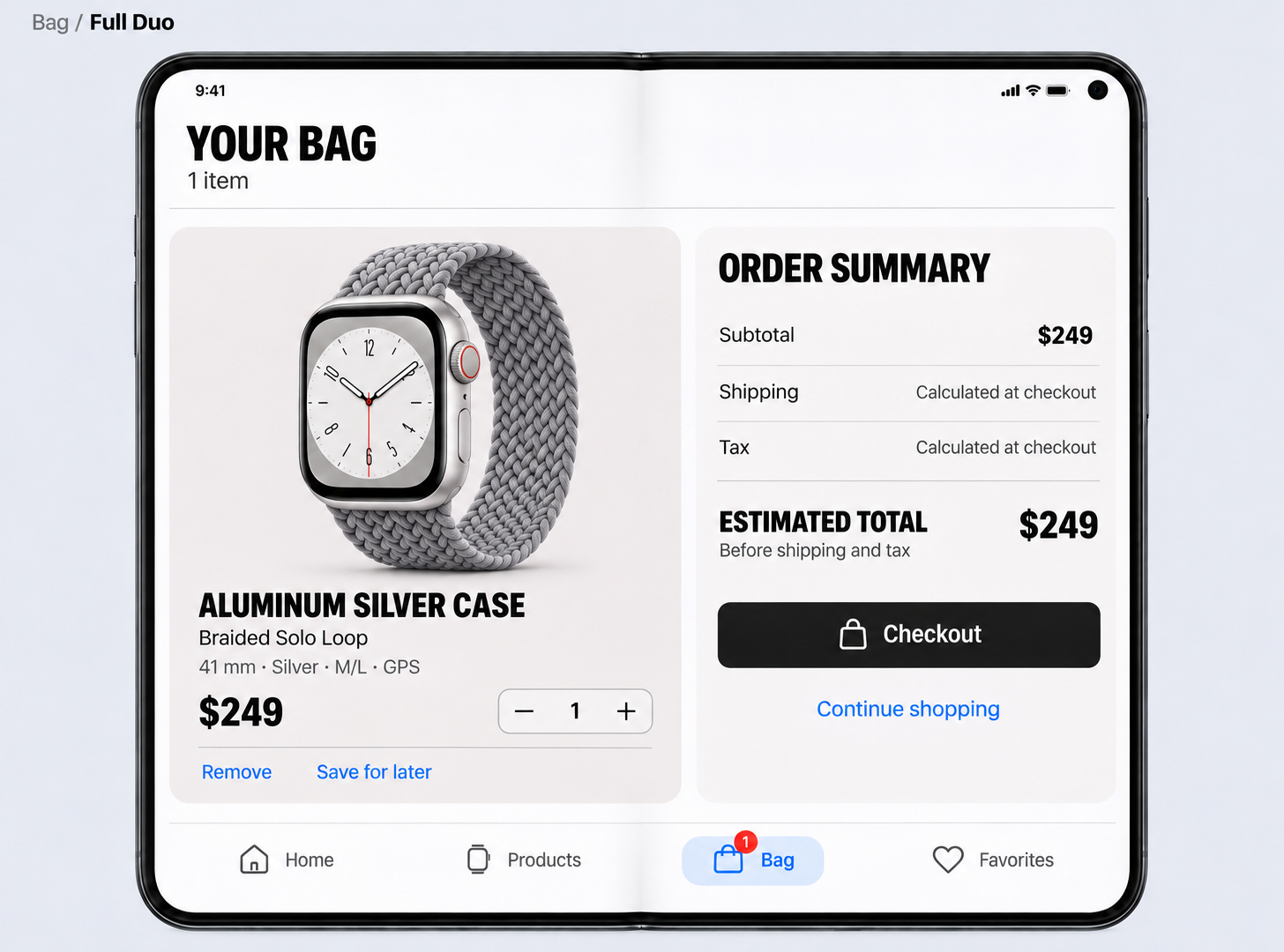
18The Bag

Items on the left and the Order Summary on the right when the screen is wide.

  • Items on the left, the summary on the right
  • A stacked layout for the closed Duo
  • A summary that stays in view
The Bag screen
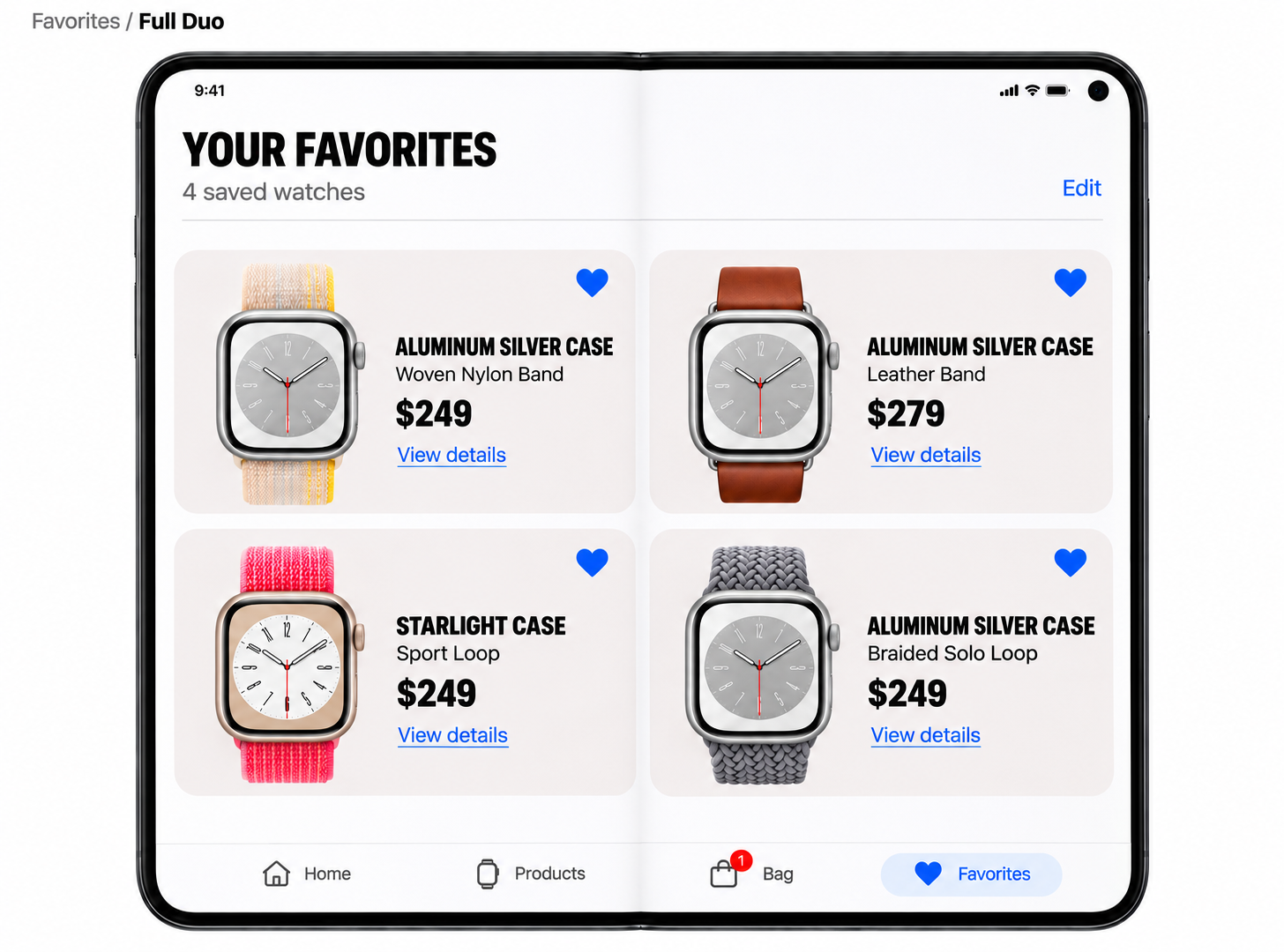
19Favorites

Favorites in a grid that leaves a gap at the fold.

  • Favorites in a grid
  • Columns for each pose
  • A gap at the fold
Favorites screen
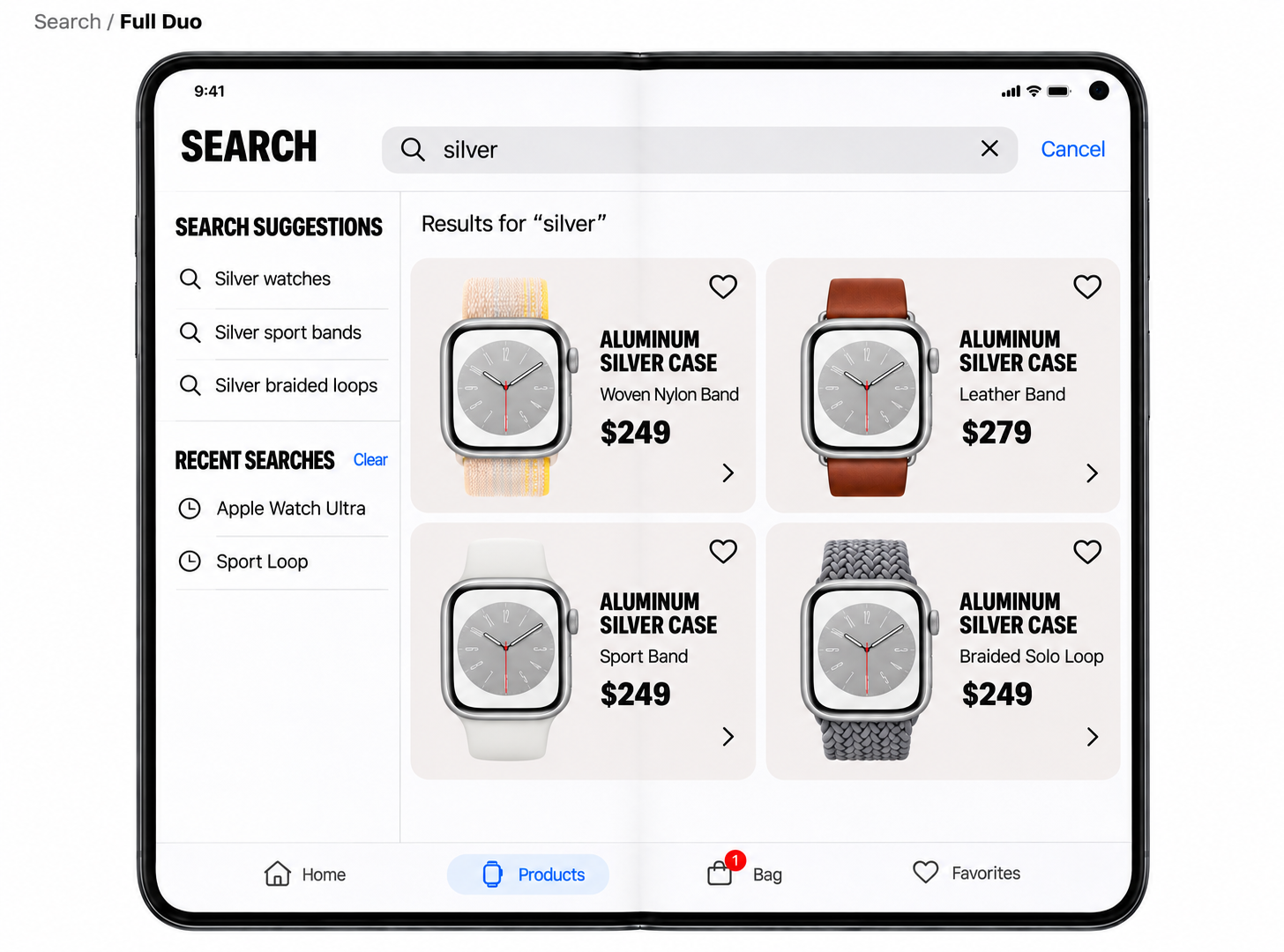
20Search

The one new screen in Part 2, with suggestions and results side by side.

  • A Search screen with suggestions and results
  • A Search tab on the open and partially open Duo
  • A search button on Home for the closed Duo
Search screen
21Empty States

Empty states for the Bag and Favorites that stay off the fold.

  • Empty states for the Bag and Favorites
  • A button that sends the reader back to the watches
  • Centered content that stays off the fold
22Test Every Pose and Device

Check every screen in every pose, and on every other device.

  • Every pose on the iPhone Duo
  • Every other device
  • A checklist for each screen

Part 3: Integration

Make it work with real data, saving, reviews, Apple Pay and TipKit. Ready now.

23Introducing UserSpec

The one chapter that adds UserSpec to the project. Optional, and the app builds the same without it.

  • What UserSpec is and why we use it
  • Adding UserSpec with Swift Package Manager
  • Writing and running a first spec
24A Reusable Networking Layer

A networking layer you can copy into any project.

  • A reusable Endpoint and HTTPClient
  • A service that decodes and flattens the catalog
  • A DataManager that fails without crashing
HTTPClient.swiftSWIFT
01protocol HTTPClient {
02 func request<T: Decodable>(
03 endpoint: Endpoint,
04 responseModel: T.Type
05 ) async -> Result<T, RequestError>
06}
25Saving Data with SwiftData

The app keeps what it downloads.

  • Models that SwiftData can store
  • A container that recovers from a bad store
  • Load once, then read with @Query
Product.swiftSWIFT
01@Model
02final class Product {
03 @Attribute(.unique) var id: String
04 var isFeatured: Bool
05 var series: String
06 var image: String
07}
26Filtering and Search That Work

The Filter button and the search field start to work on real data.

  • Filter rows from the server
  • Strategies and decorators on real products
  • The Products screen and a real search
FilterStrategy.swiftSWIFT
01protocol ProductFilterStrategy {
02 func filter(products: [Product],
03 by specs: [ProductSpecs]) -> [Product]
04}
27Favorites and Layout Switching

Hearts that stay saved, and a layout the app remembers.

  • A heart that saves with the product
  • A Favorites screen that is a query
  • A layout the app remembers
Favorites and Layout Switching screen
28Product Detail and the Bag

The detail screen and the Bag start to work together.

  • Choices that must all be made
  • A Bag that adds, counts and taxes
  • Save for later, kept by SwiftData
Product Detail and the Cart screen
ShoppingCart.swiftSWIFT
01var total: Decimal {
02 products.reduce(Decimal.zero) { $0 + $1.lineTotal }
03}
29Reviews

Reviews saved with SwiftData, and a rating that updates with them.

  • A review model with a relationship
  • An average that handles no reviews
  • A form that saves a review
Review.swiftSWIFT
01@Model
02final class Review {
03 var title: String
04 var rating: Float
05 var name: String
06 var product: Product?
07}
30Apple Pay

Apple Pay in the Bag, and a Bag that clears only when the payment works.

  • A payment handler that reports one answer
  • A Bag that clears only on success
  • Checkout and Apple Pay buttons
PaymentHandler.swiftSWIFT
01class PaymentHandler: NSObject {
02 var paymentController: PKPaymentAuthorizationController?
03 var paymentSummaryItems = [PKPaymentSummaryItem]()
04
05 static let supportedNetworks: [PKPaymentNetwork] = [
06 .amex, .discover, .masterCard, .visa
07 ]
08}
31TipKit

Three tips that show once, when their rule is met.

  • A tip is a struct
  • A rule that waits for a step
  • Tips that show once
ProductLayoutTip.swiftSWIFT
01struct ProductLayoutTip: Tip {
02 var title: Text {
03 Text("Switching Layouts")
04 }
05 var image: Image? {
06 Image(systemName: "rectangle.grid.1x2.fill")
07 }
08}

Inside the book

Small steps. Every one explained.

Most books hand you a wall of code. Here, you build each file in small pieces. A step shows only the new code, a comment stands in for what you already wrote, and a short explanation tells you what it is for.

31chapters in three parts
6screens, each built from scratch
3fold poses, all supported
1snippets file for every chapter
A chapter opener page
Every chapter opens with what you will build.
A page with small code cards, each explained
Small code cards, each one explained.
A code card with a previous code comment
New lines only. The rest is marked as previous code.

Try a page from the book

Tap a line.

01extension Text {
02 // previous code
03 func heavy(size: CGFloat = 60) -> Text {
04 let condensed = UIFont.systemFont(ofSize: size, weight: .heavy, width: .condensed)
05 return self.font(Font(condensed))
06 }
07}
Step

Tap one of the highlighted lines to see how the book explains it.

The device

Same app. Three poses.

The book focuses on iPhone Duo. The code is plain SwiftUI, so the same app runs on every iPhone and iPad. On the Duo, nothing ever sits on the crease.

The app in the closed pose
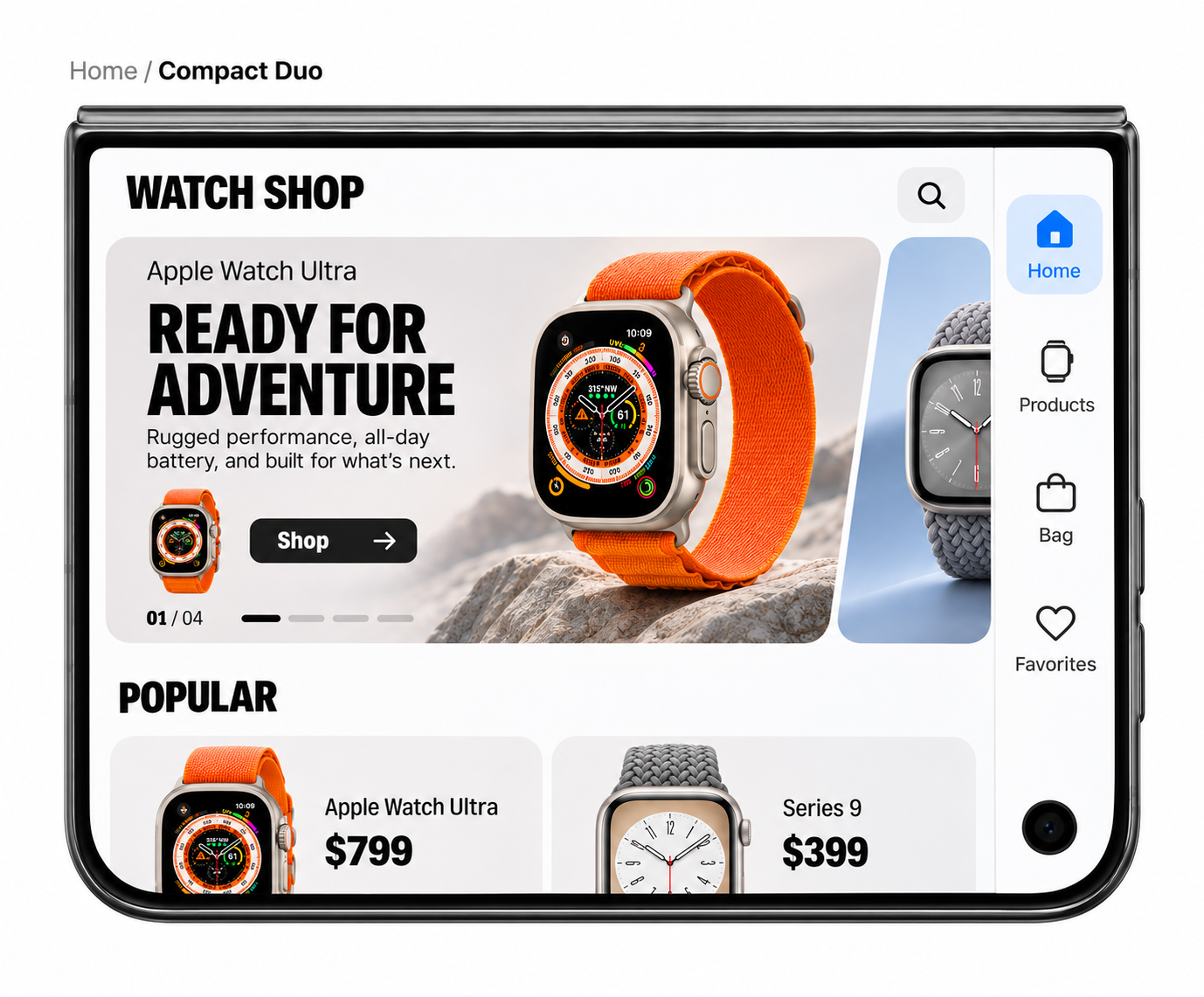
Closed

A wide, short screen with a tab rail on the right.

The app in the open pose
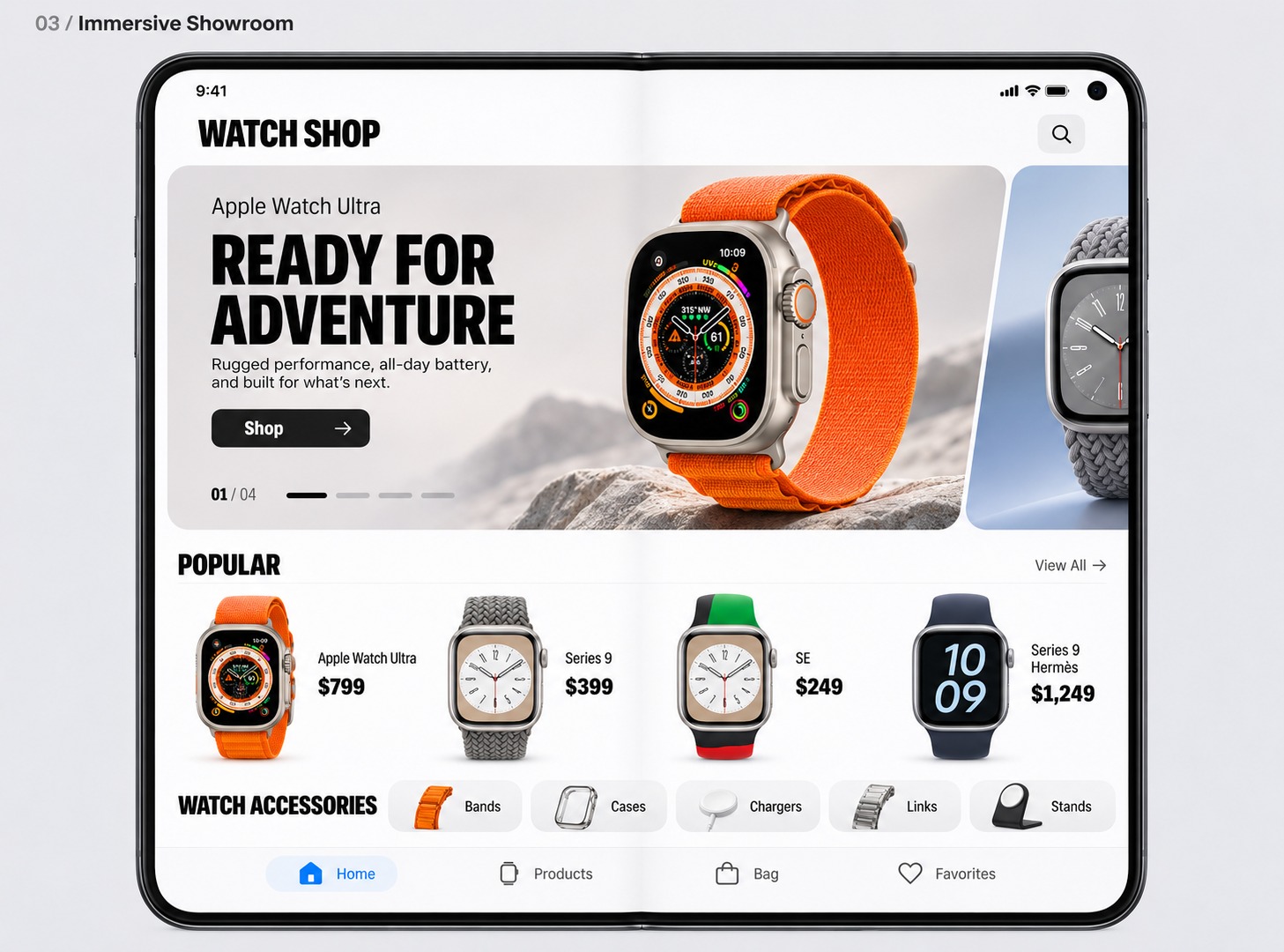
Open

The full canvas, with content kept clear of the seam.

The product detail screen
Half-open

Two panes, with the fold between them.

HomeProductsDetailBagFavoritesSearch

Home, Products, Detail, Bag, Favorites and Search. These are design mockups.

included in the book

Start with the story. Prove the behavior.

UserSpec turns user stories into Given, When and Then scenarios, built on Swift Testing. You start from the design, write the story a shopper would recognize, and let the scenarios prove the screen does what it should. In this book, Chapter 23 introduces it, and chapters 24 to 31 open with the stories and end with the specs that prove them. It is all optional. Skip it and the app builds exactly the same.

Build an Apple Watch Store App in SwiftUI, cover
Included · optional
from screen to spec

Start with the story.Prove the behavior.

UserSpec turns user stories into Given / When / Then scenarios, built on Swift Testing.

01THE SCREEN
02THE SCENARIO
03THE CHECK
Your bag
1 item
Aluminum
Silver Case
Braided Solo Loop
41 mm · Silver · M/L · GPS
−1+
A shopper removes a watch.
@Scenario
Remove a watch from the bag
GIVEN
A bag contains one watch
WHEN
Its quantity becomes zero
THEN
The bag is empty
Your bag is empty
Browse products
ILLUSTRATIVE RESULT
Expected: empty bag
Verified by the test
Design → User story → @Scenario → Given / When / Then → #expect
Describe what the user does
Check the expected result
Keep the behavior working

why bdd, not tdd

Start from what the user does.

TDD

Starts from the code. You write a failing test for a function or a type, then make it pass.

The test describes how the code works.

BDD

Starts from behavior. You write a story the user would recognize, then scenarios for it.

The test describes what the app does, in plain words.

Nothing is wrong with TDD. But if you start with the design, as I do, a test for a function starts in the wrong place. You already know what the screen should do for the person using it. BDD lets that become the test, working from the outside in, one story at a time.

why i wrote it

Built by a design-first developer.

I wrote UserSpec myself because I am a design-first person. I think in screens and in what a person is trying to do, not in classes and functions. I wanted something built on top of Swift Testing that let me use user stories to do my testing, instead of the traditional TDD approach. This book is where it gets used on a real app.

what you get with it

  • Built on Swift Testing. It uses Swift 6 and Xcode 16, so it fits the tools you already have.
  • Given, When, Then. Scenarios in plain language, with async/await support.
  • Failures that explain themselves. The output shows the Given, When and Then that failed.
  • UI testing. Scenarios can drive the app with XCUIApplication.
  • Helpers. Test data builders, mocking, shared examples and snapshot testing.
  • Reports. HTML, Gherkin and console output.

UserSpec is open source under the Apache 2.0 license. Check the GitHub page for the current version and requirements.

AI coding assistants

Teach your assistant how this app is built.

Your download includes ready-to-use instruction files for AI coding assistants, based on the way the book builds the app. Drop them into your project and your assistant follows the same rules you are learning.

OpenAI CodexAGENTS.md
Claude CodeCLAUDE.md

They cover the project structure, file names like View+Extension, the MV pattern with no view models, the shared styles, and how to lay out each fold pose.

Free chapter

Not sure yet? Read Chapter 1 free.

Tour the starter project and write your first code: the navigation bar style, the fonts and the text styles every screen uses. It is a free PDF. Enter your email and it opens right away.

Enter your email on the next page and the PDF is sent to you. No spam. Unsubscribe any time.

Get the book

Get the book.

The book is complete. All three parts, the snippets, the projects and the AI assistant files come in one download. UserSpec is included, and you can skip it.

The book cover

The book, with UserSpec

$39
  • All three parts, complete
  • UserSpec chapters and specs, optional
  • Snippets for every chapter
  • Starter and finished projects
  • Everything in one download, AppStoreWatchApp-CompleteBook.zip
  • AI assistant files for Codex and Claude Code
Buy now · $39

What you get

All three parts are ready.

  1. Part 1: Design. Ready now. Build every screen with dummy data.
  2. Part 2: iPhone Duo. Ready now. Adapt the app for the fold: poses, grids, filters, search and empty states.
  3. Part 3: Integration. Ready now. A reusable networking layer, SwiftData, reviews, Apple Pay and TipKit.

Written by

Craig Clayton.

I teach iOS development and run the Design to SwiftUI YouTube channel, where the 44-video iOS 17 series shows this app being built.

When do I get it?

Right away. The book is complete, and you download everything at once: the book, the snippets, the starter and finished projects, and the AI assistant files.

What do I need?

A Mac with a recent version of Xcode, and some SwiftUI and Swift basics.

Does it only work on the Duo?

No. The book focuses on iPhone Duo, and the same app runs on every iPhone and iPad.

Do I need the videos?

No. The book stands on its own.

What code do I get?

A starter project, the finished project and a snippets file for every chapter, so you can type the code or copy it.

Is the book finished?

Yes. All three parts are complete.

The email list

Hear about every new part.

One short email when a new part ships, and one when a new book is ready. Nothing else.